Importing and Exporting a JSON File
Import a ScanCode JSON File
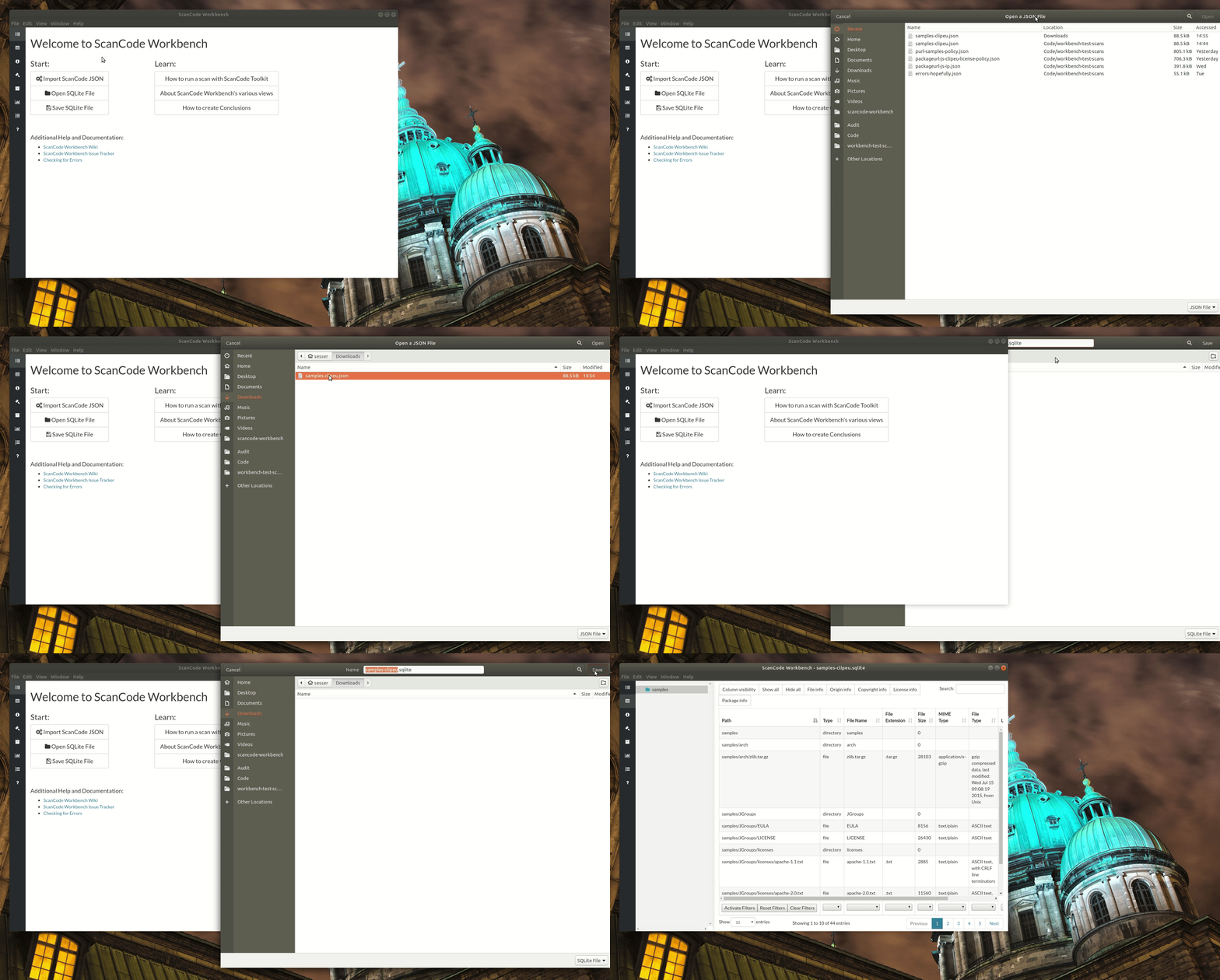
- We have provided a set of sample scans that you can quickly review in ScanCode Workbench in order to get a sense of its functionality and the types of information captured by a scan. The samples are located at https://github.com/nexB/scancode-workbench/tree/develop/samples.
- To import a ScanCode JSON file:
- Open the
Filemenu and selectImport JSON File(keyboard shortcut:Ctrl+Ior⌘+I). - In the dialog window that opens, navigate to the JSON file you want to import, select the
file and click
Open. - You will then be prompted to choose a filename and location to save the JSON file as a SQLite
database file. Add a filename, select the folder in which you want to save the SQLite database
file, and click
Save. - ScanCode Workbench will then create a SQLite database file from your JSON file, indicated by the status message “Creating Database …”
- Once the process has finished, the status message will be replaced by an expandable code tree and, to the right of the tree, a table displaying provenance information generated by ScanCode.
- Open the
Export a JSON file
- To export a JSON file:
- Select the
Filemenu and then selectExport JSON File(keyboard shortcut:Ctrl+Eor⌘+E). - In the dialog window that opens, add a name for the file, navigate to the directory in which
you want to save the file and click
Save.
- Select the